

Getting Started Guide
From sign-in to meaningful action.
Follow the guide to set up your Cultara environment, securely prepare your communication data, create your first assessment, and begin using the results.
What this guide covers
Set up your environment
Create your organization and workspace.
Prepare data securely
Anonymize and prepare communication data.
Turn findings into action
Review results, risks, and recommended actions.
Before You Begin
Everything you need before creating your first assessment.
Make sure your organization is ready, your communication data can be
prepared, and you understand what happens once processing begins.
Organization Access
Create or join an organization before creating workspaces and
assessments.
Prepare Your Data
Use the Cultara Parser to anonymize and prepare communication data.
What to Expect
View dashboards, evidence, risks, and recommended actions once
processing completes.
Step-by-Step Guide
Create and complete your first assessment
Select a step below to view the instructions and relevant Cultara
screens.
Step 1 of 4
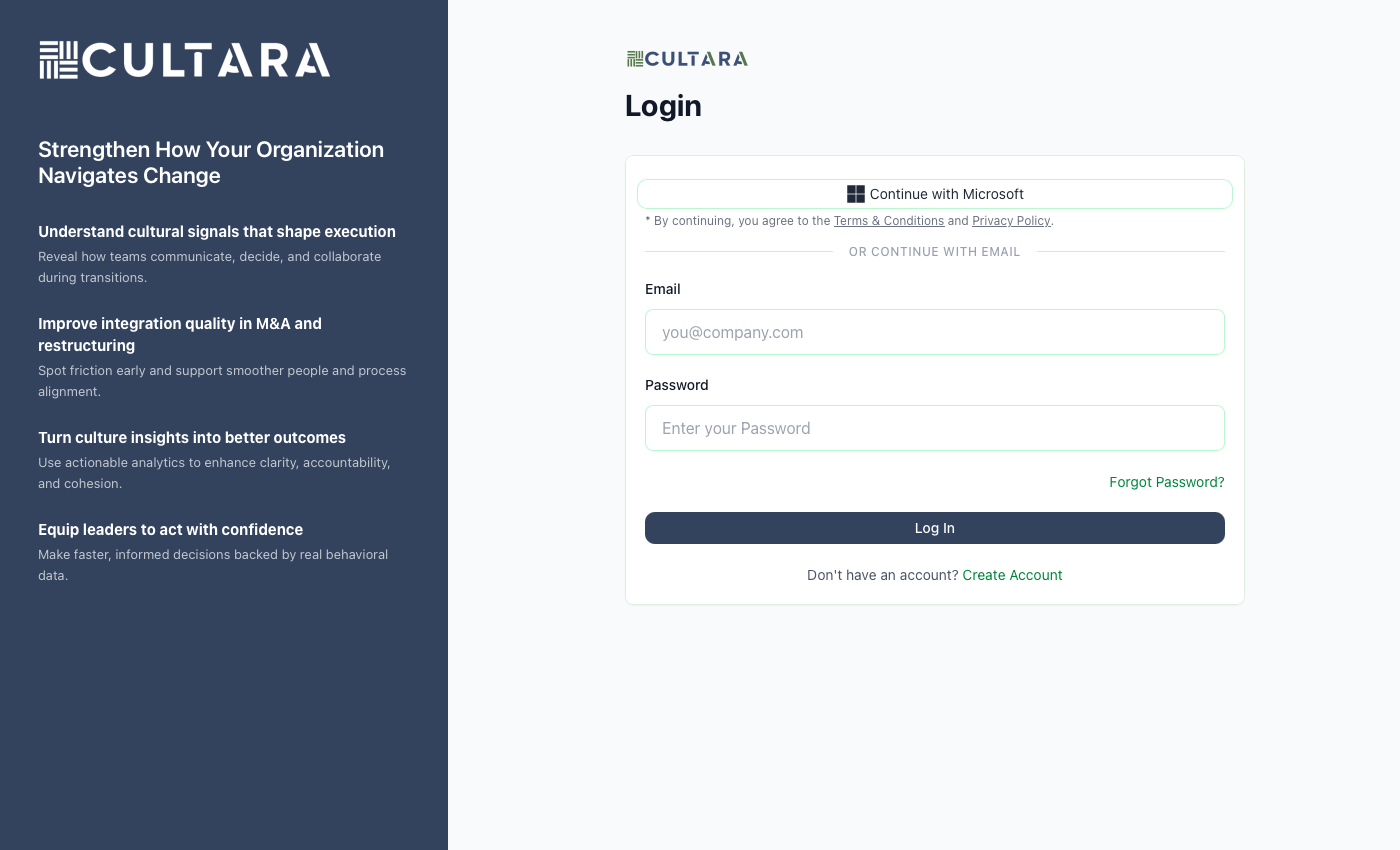
Sign in and create your organization
Your organization is the secure environment that contains your
workspaces, assessments, users, and account settings. The person who
creates the organization becomes its initial owner.
1
Sign in to Cultara
Open the Cultara application and sign in using your
email address and password. Complete email verification if
prompted.
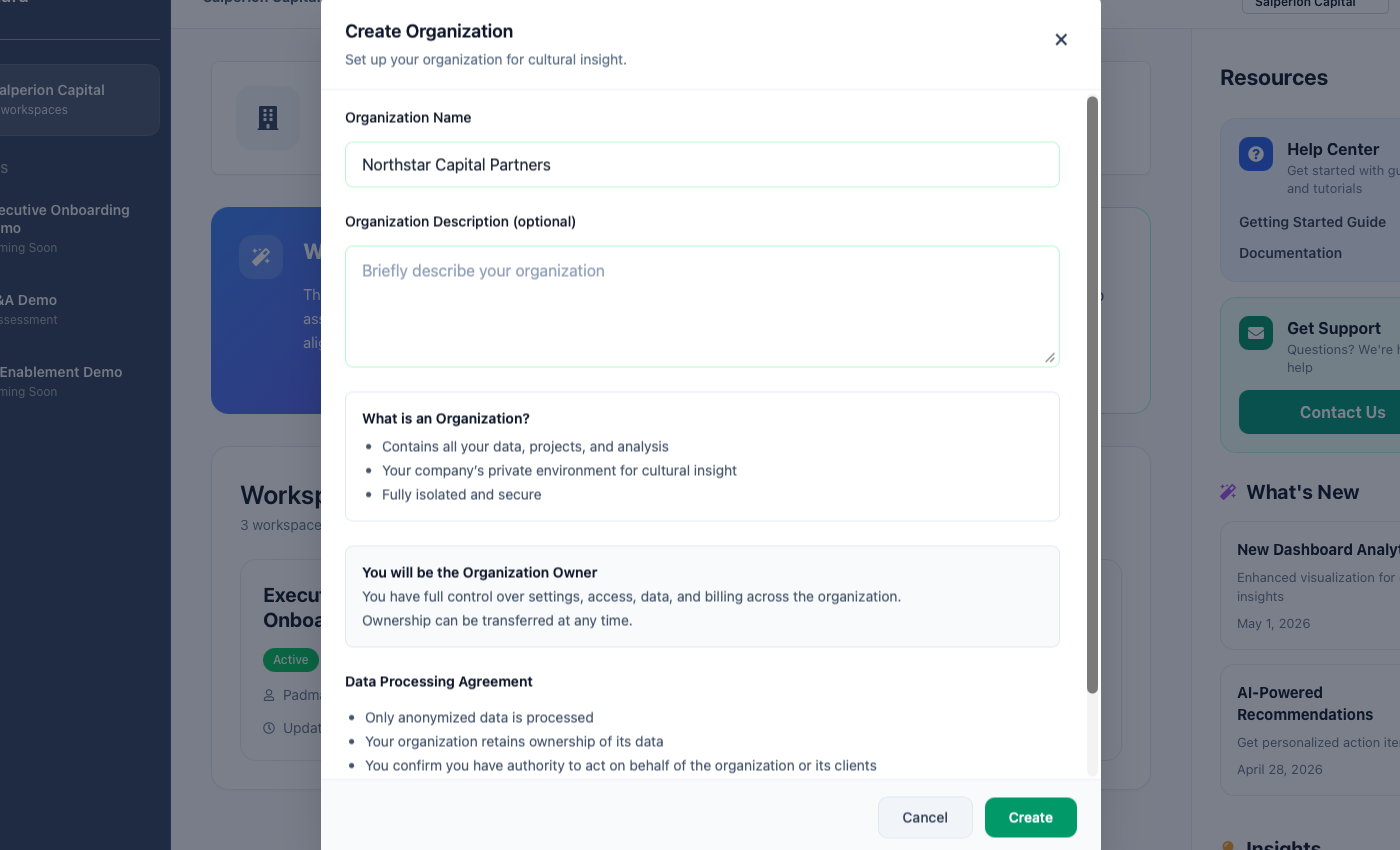
2
Start organization setup
Select the option to create a new organization. Use the legal or
commonly recognized name of the company that will manage the Cultara
environment.
3
Review and accept the agreements
Confirm that you have authority to create the organization and
agree to Cultara’s platform and data-processing terms.
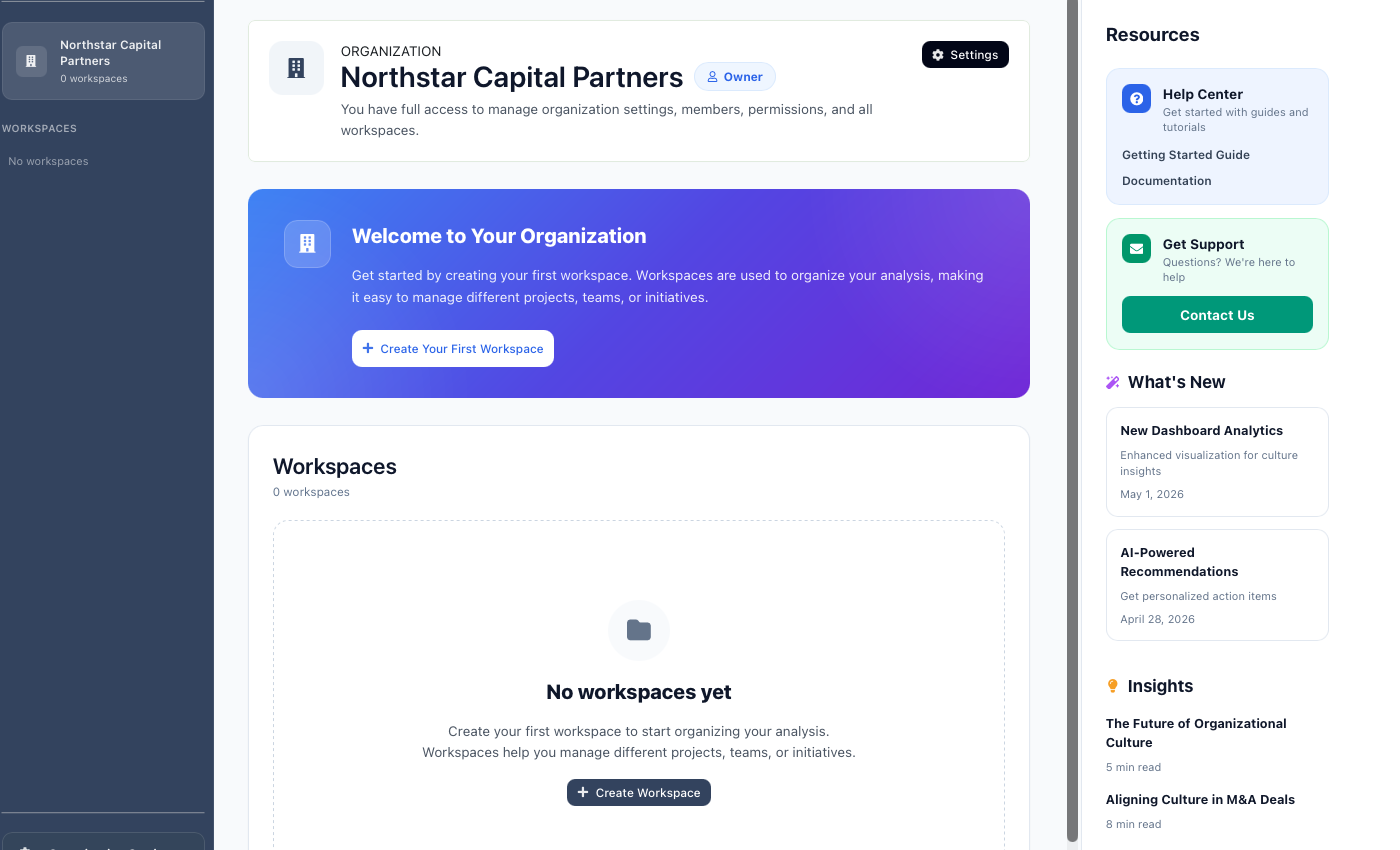
4
Enter your organization
Once setup is complete, you will enter the organization dashboard
and can begin creating your first workspace.
app.cultara.ai
app.cultara.ai
i
The organization owner
The person who creates the organization becomes the Organization
Owner and manages organization-level access, settings, billing, and
ownership.
Step 2 of 4
Create a workspace
A workspace is a private area used to organize related assessments,
manage access, and keep each initiative clearly separated within your
Cultara organization.
1
Open the Workspaces area
From your organization dashboard, open the Workspaces page and
select the option to create a new workspace.
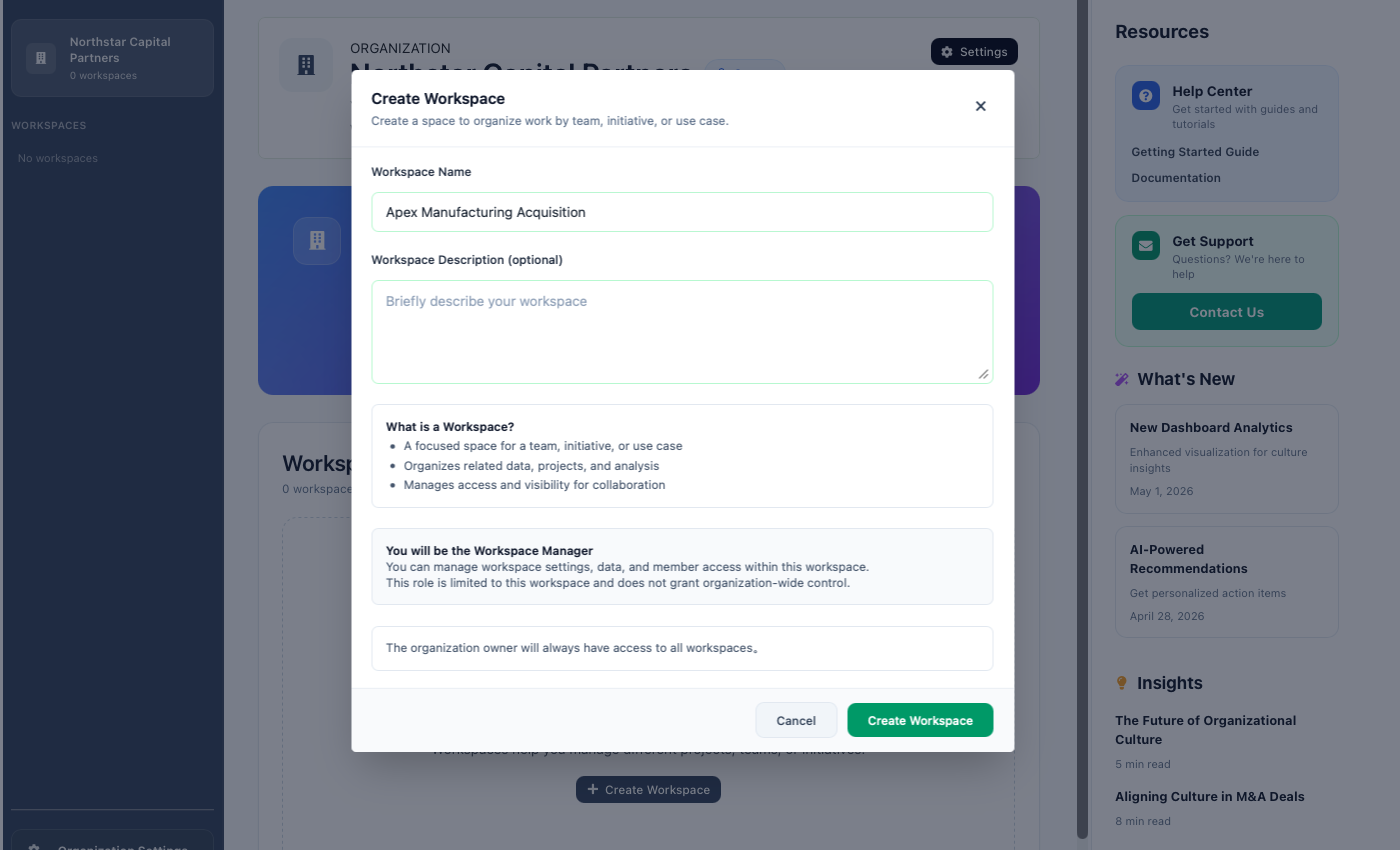
2
Name the workspace
Enter a clear name that identifies the client, transaction,
initiative, or business objective the workspace will support.
3
Add a description
Add a short description that explains the purpose of the
workspace and the assessments that will be created within it.
4
Create the workspace
Complete the setup to enter the workspace. You can then create
assessments and manage the users who need access.
app.cultara.ai
app.cultara.ai
i
Keep each initiative separate
Use separate workspaces when assessments belong to different clients,
transactions, initiatives, or access groups. This keeps the work
organized and helps ensure users only see the areas relevant to them.
Step 3 of 4
Create an assessment
Configure the assessment, prepare communication data securely in your
own environment, upload the anonymized output, and allow Cultara to
complete the analysis.
1
Configure
Define the assessment and organizations being analyzed.
2
Prepare locally
Use the Cultara Parser to anonymize and prepare the data.
3
Upload securely
Upload the parser output to the correct assessment.
4
Process
Cultara analyzes the data and prepares the results.
Phase 1
Configure the assessment
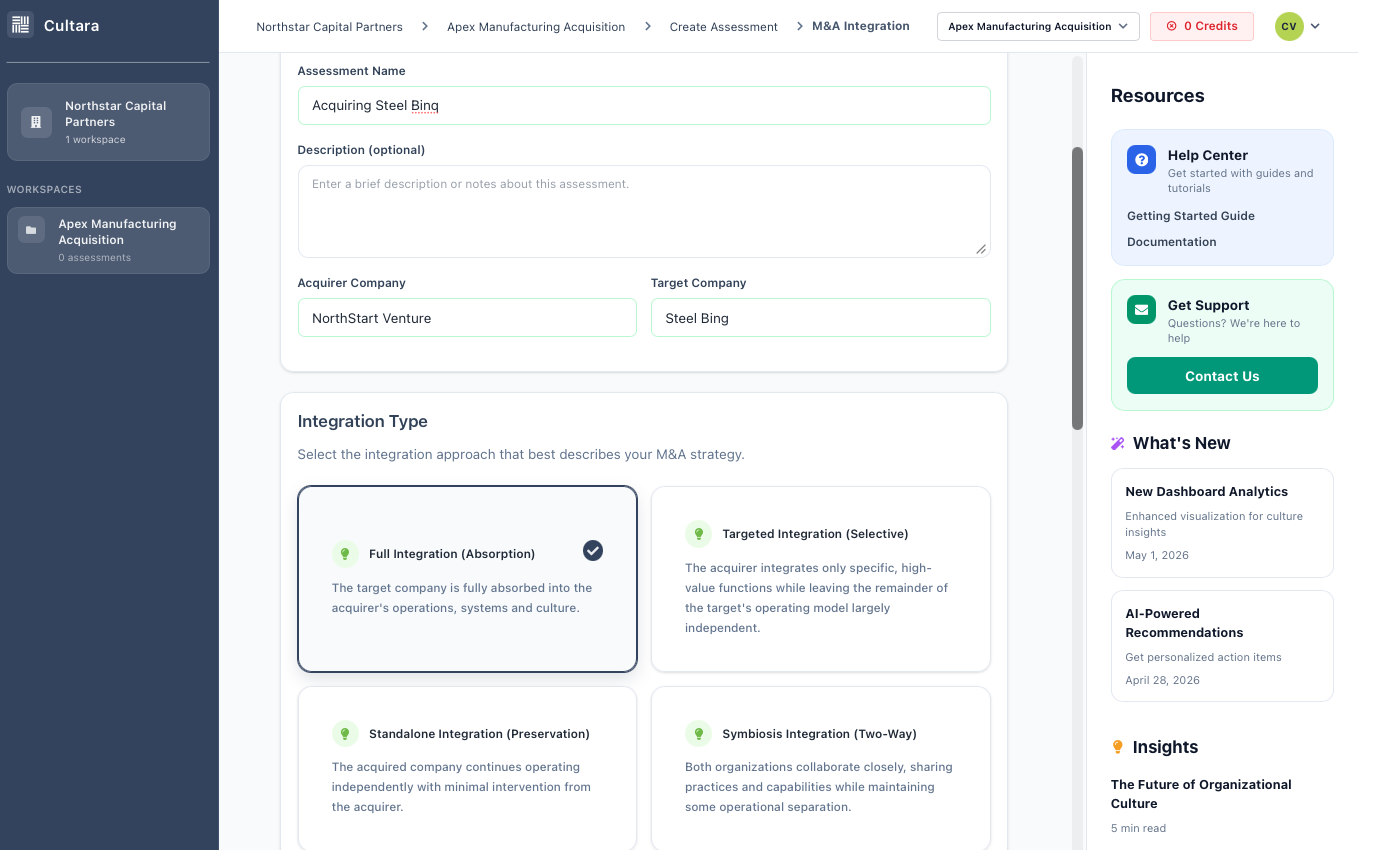
Begin from the workspace and select the option to create an
assessment. The information requested may vary based on the selected
use case.
1
Select the assessment type and applicable strategy.
2
Enter the assessment name and required organization details.
3
Review the setup and create the assessment.
app.cultara.ai
Privacy by design
Why Cultara uses a local parser
Cultara does not maintain a live connection to your email or
messaging systems. Instead, the Cultara Parser runs in your
environment so sensitive information can be removed before any data
is uploaded to the platform.
✓
No standing access to customer mailboxes or messaging platforms.
✓
Sensitive values are anonymized within the customer environment.
✓
Customers control which data is prepared and when it is uploaded.
✓
The approach reduces unnecessary data access and integration risk.
Data preparation flow
Customer communication export
↓
Cultara Parser runs locally
↓
Sensitive information is removed
↓
Anonymized output is uploaded
Phase 2
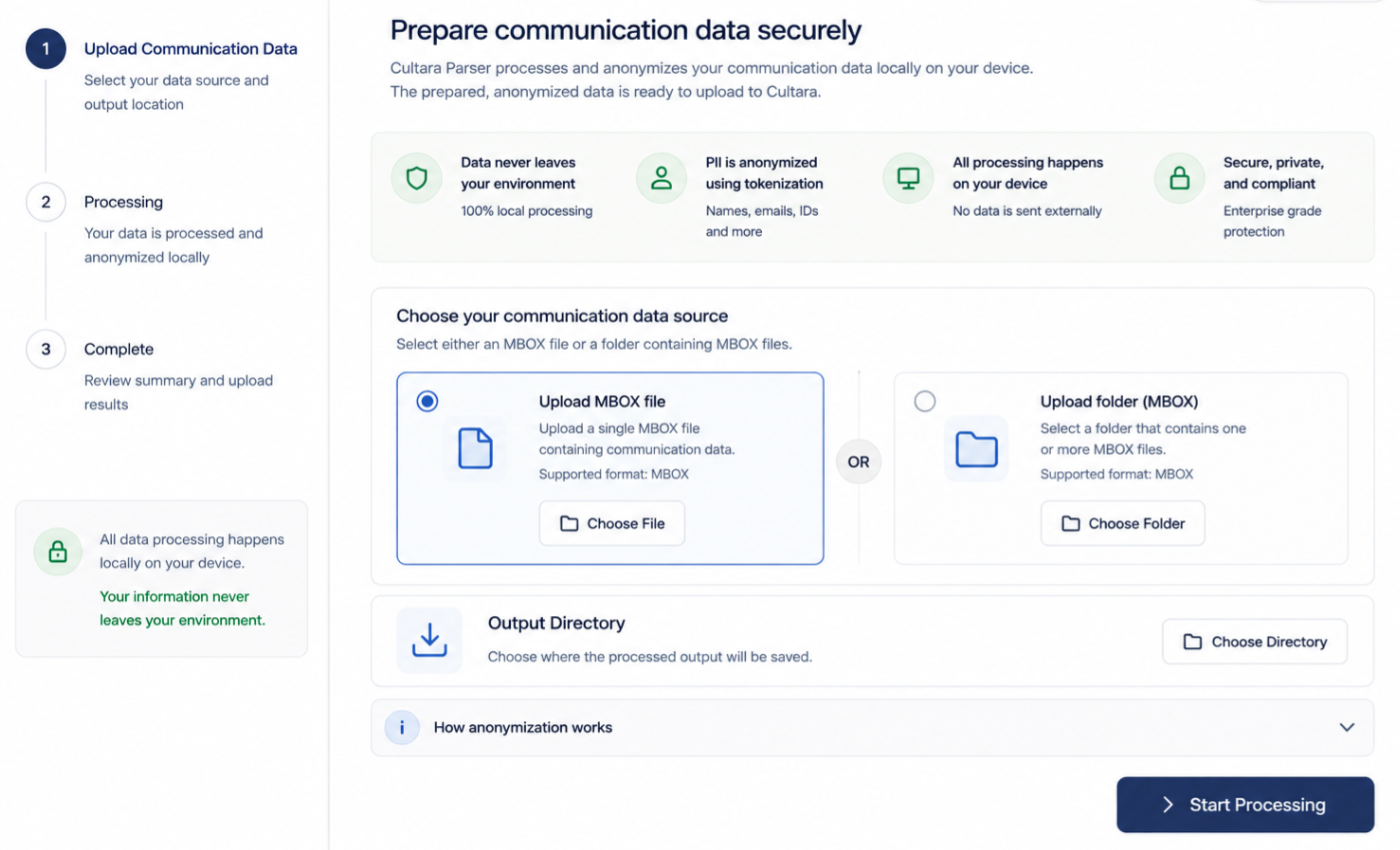
Prepare the data with the Cultara Parser
Download and open the parser, select the source data and output
location, then run the preparation process. The parser creates the
files required for the assessment.
Select the input
Choose the communication export being prepared for the assessment.
Confirm the output location
Select where the prepared assessment files will be created.
Run and review
Start processing and review the completion summary before upload.
app.cultara.ai
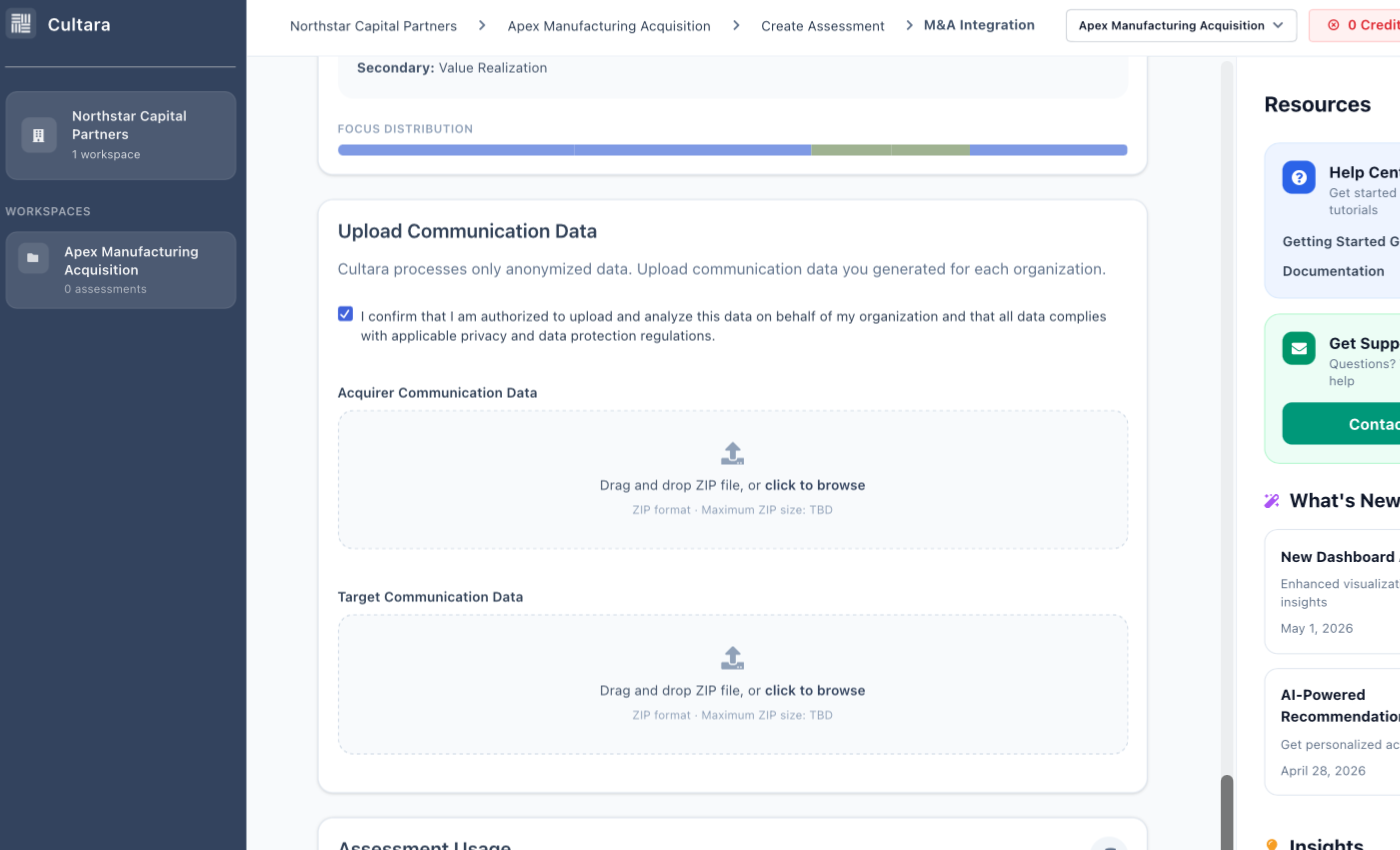
Phase 3
Upload the prepared files
Return to the assessment, select the upload area, and add the files
created by the parser. Confirm that each file is associated with the
correct organization before continuing.
app.cultara.ai
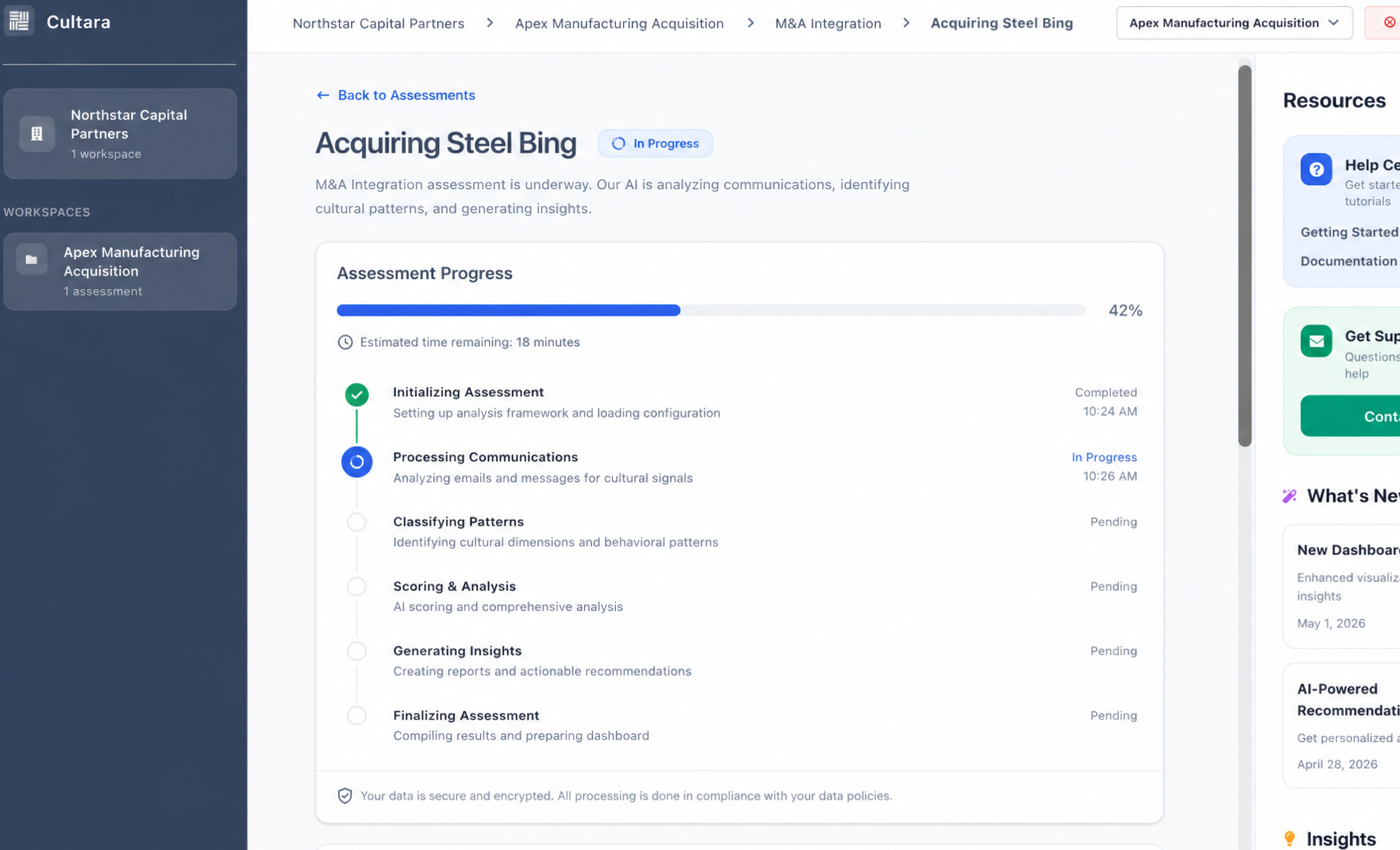
Phase 4
Start assessment processing
After the required files are uploaded, begin processing. Cultara
prepares the data, identifies relevant behavioral signals, calculates
the assessment results, and builds the dashboard.
app.cultara.ai
i
You do not need to keep the parser open after upload
Once the prepared files have been uploaded successfully, Cultara
performs the assessment processing within the platform. You can
return later to check the status and review the completed results.
Step 4 of 4
Review the results and take action
Once processing is complete, use the Cultara dashboard to understand
the assessment, explore the evidence behind the findings, identify
priorities, and turn the results into focused action.
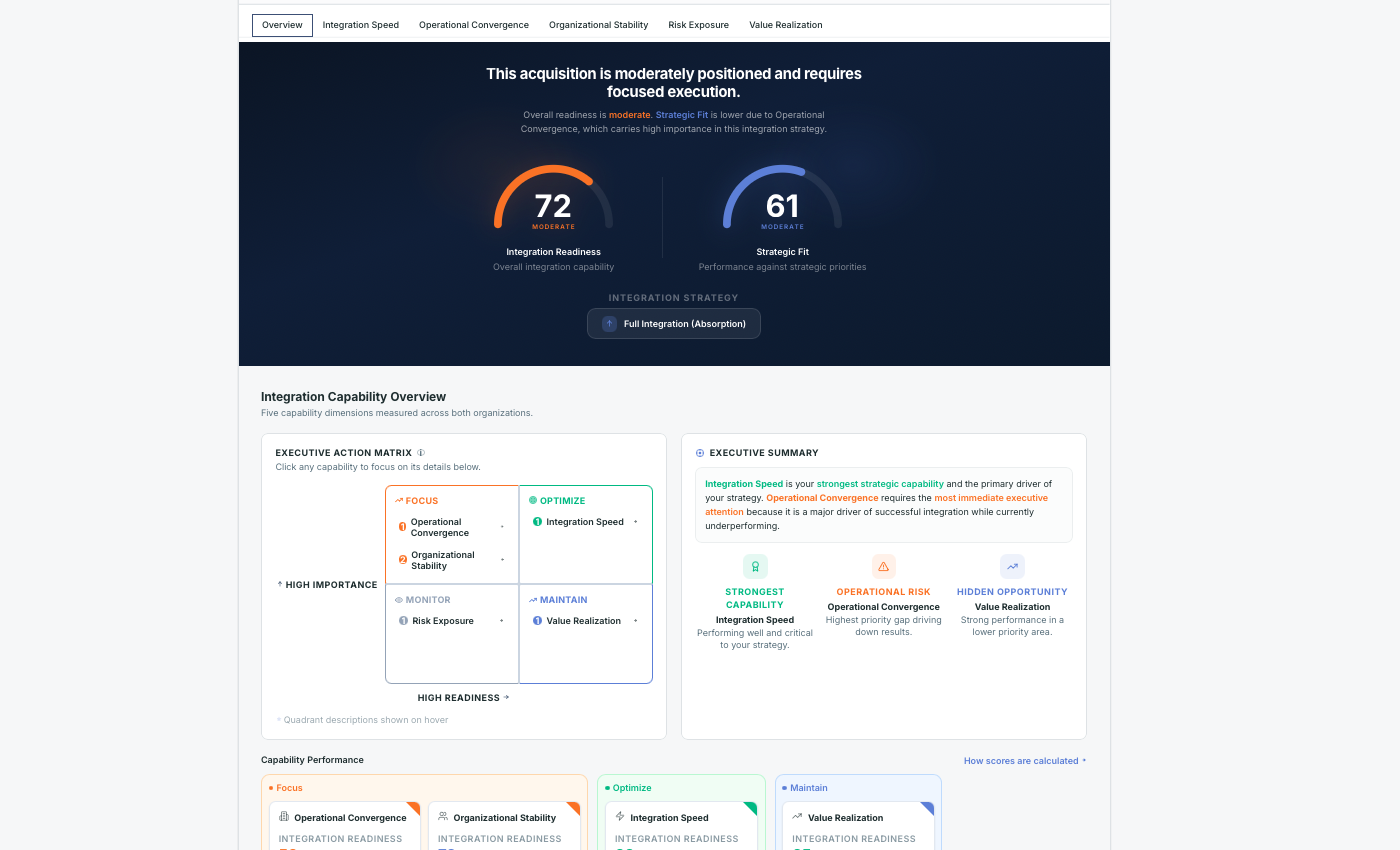
Review the overall picture
Start with the executive summary and business KPI results to
understand the major strengths, differences, and areas requiring
attention.
Explore the findings
Move from the KPI level into the cultural dimensions, confidence
information, supporting evidence, and identified risks behind each
result.
Focus the next actions
Use the identified risks, recommended actions, and areas of alignment
to prioritize where leaders should intervene or build on existing
strengths.
Start here
Begin with the assessment overview
The overview provides a high-level summary of the assessment and the
most important findings. Use it to understand the overall posture
before moving into the individual KPI areas.
1
Read the executive summary for the overall interpretation.
2
Review the KPI results and areas of strongest alignment or risk.
3
Use the summary to decide which KPI areas to investigate first.
app.cultara.ai
app.cultara.ai
Explore further
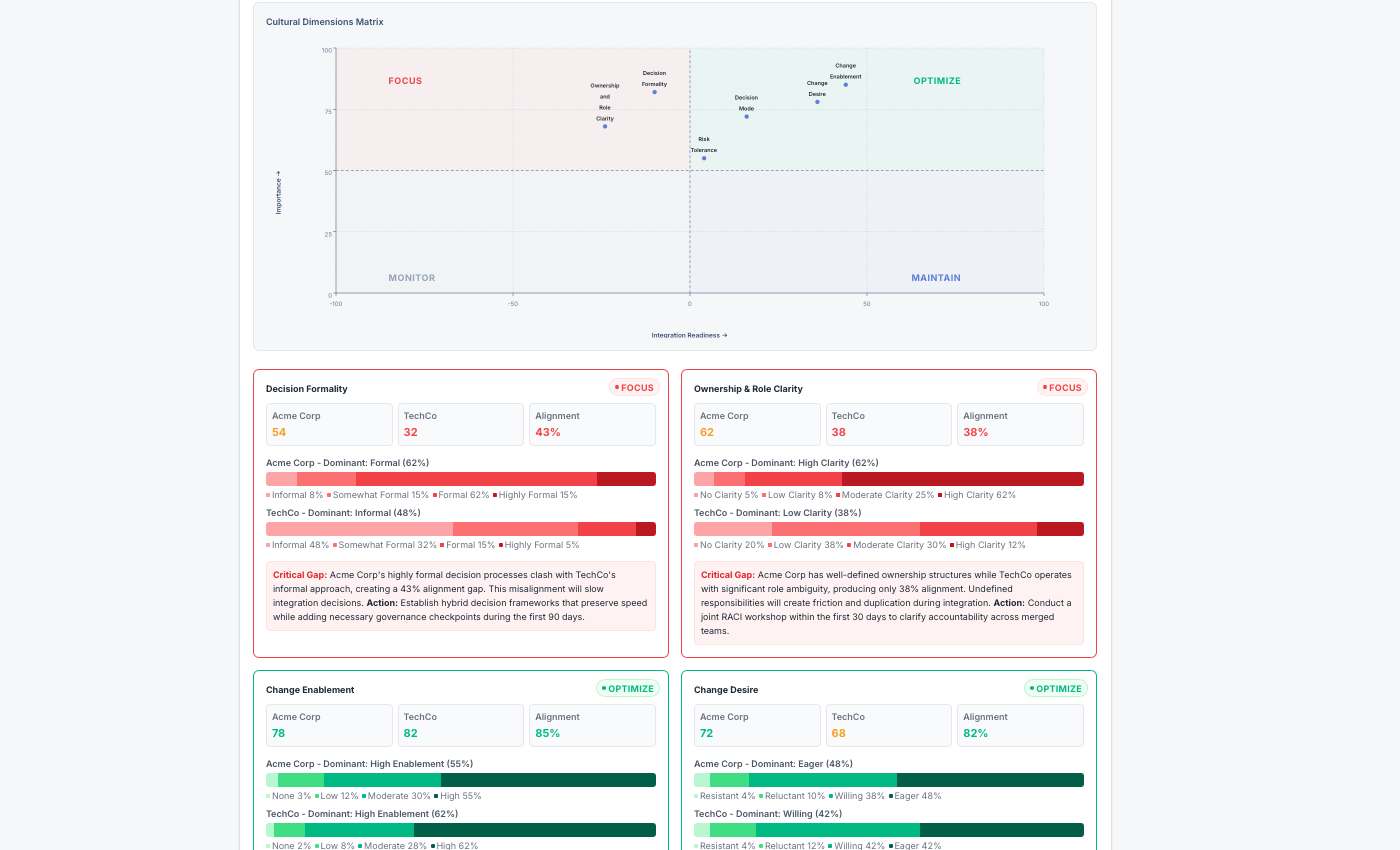
Move from KPIs into the underlying evidence
Each KPI brings together the cultural dimensions most relevant to
that business outcome. Explore the dimensions to understand what is
driving the result and where the organizations may reinforce or
challenge one another.
Cultural dimensions
Review the behavioral patterns that contribute to the KPI.
Confidence and evidence
Examine the confidence information and supporting communication
excerpts behind the interpretation.
Strengths and risks
Identify where the organizations reinforce one another and where
differences may create execution risk.
Put the findings to work
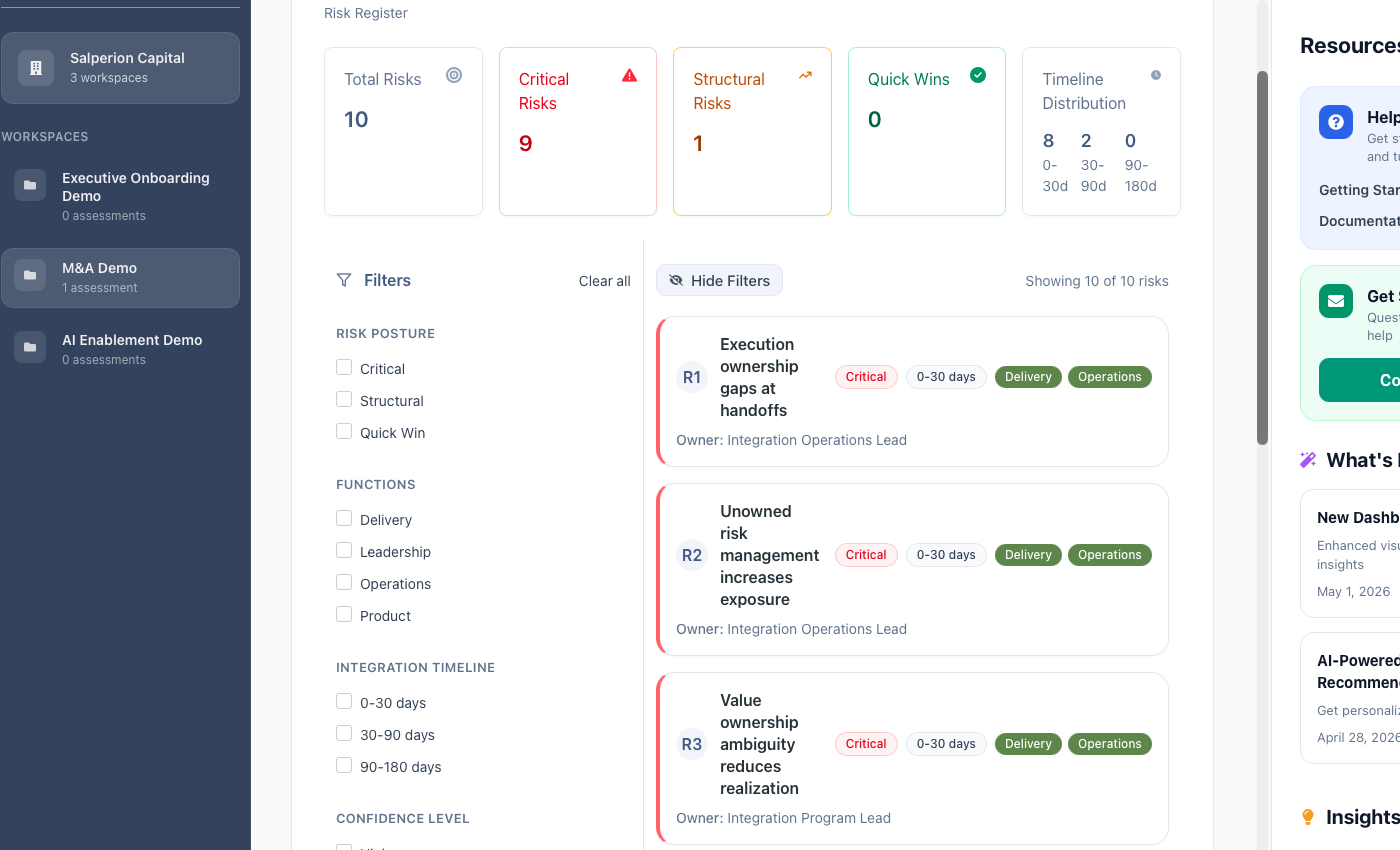
Use the results to support decisions
Cultara is designed to help leaders move from diagnosis to action.
Use the findings to focus conversations, validate assumptions, and
prioritize the areas most likely to affect the business objective.
✓
Prioritize the highest-impact risks and opportunities.
✓
Align leaders around the findings and required response.
✓
Assign ownership and timelines for the selected actions.
✓
Return to the results as the initiative progresses.
app.cultara.ai
Your first assessment is complete
You can return to the assessment at any time to review the results,
share the findings with permitted users, or use the insights to guide
planning and decision-making.
You're ready to get started.
Your first assessment is only a few steps away. If you'd like to learn more about how Cultara approaches privacy, security, and AI before getting started, explore the technical documentation. If you need assistance, our team is here to help.